Table of Contents
If your wrists feel sore, your neck gets stiff, or your shoulders become tense after a full day at your computer, your desk setup might be contributing to the problem.
Working for hours with your arms stretched forward, your head tilted downward, or your wrists bent at uncomfortable angles can gradually increase muscle fatigue.
Fortunately, you don’t need to replace your entire workstation to make improvements. A few practical desk accessories can help you maintain more comfortable positions and reduce unnecessary reaching.
Here are five accessories worth considering, starting with something many office workers use almost constantly.
1. Lekvey Ergonomic Vertical Wireless Mouse
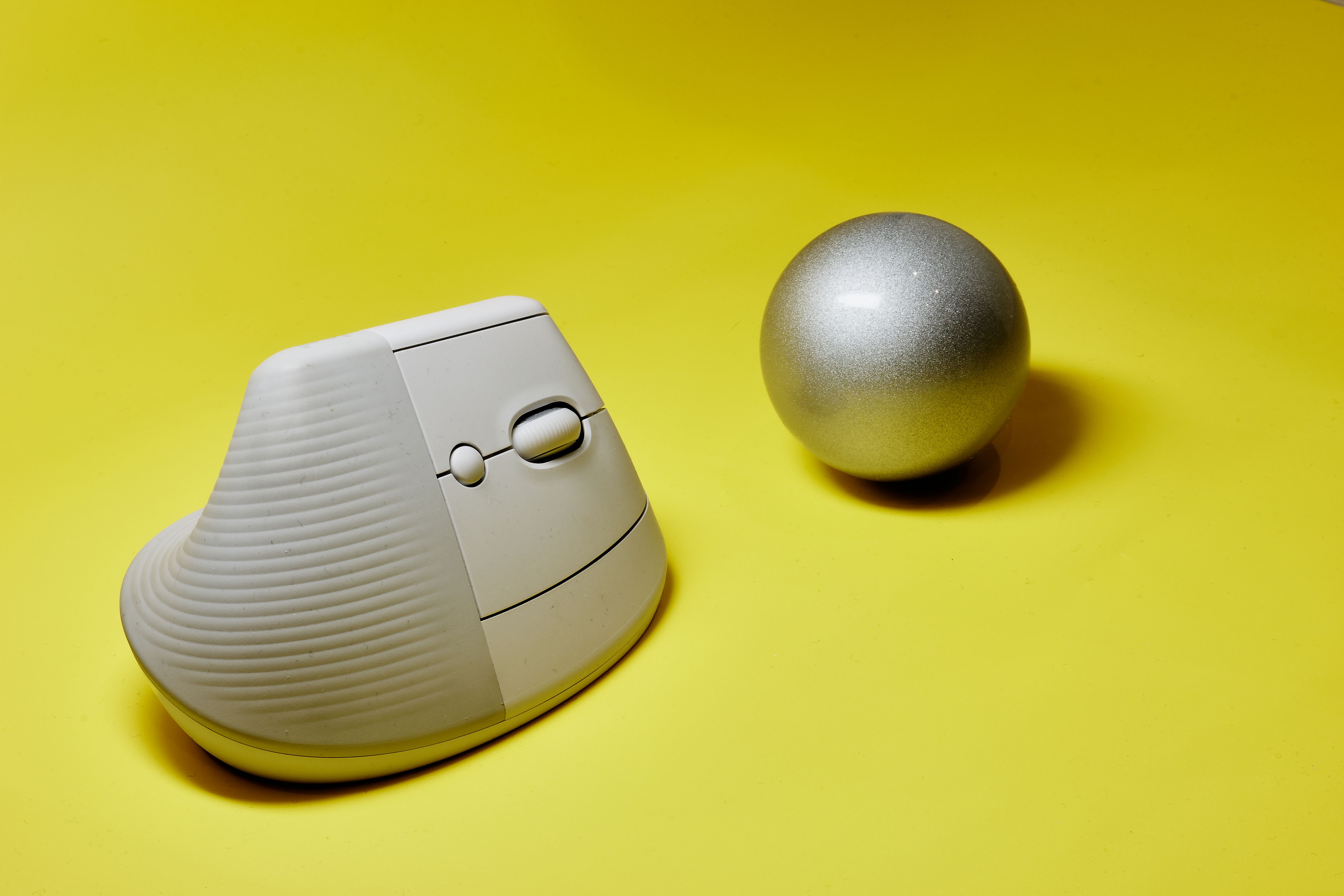
A traditional computer mouse keeps your hand facing downward, requiring your forearm to remain rotated during use. For some people, maintaining that position throughout the workday can become uncomfortable.
The Lekvey Ergonomic Vertical Wireless Mouse takes a different approach. Its vertical design encourages a handshake-style grip, which allows your forearm to remain in a more neutral position.
This makes it an option worth considering for people who spend several hours browsing, editing documents, or working with spreadsheets.
Here are its main features:
- Ergonomic vertical grip: Designed to encourage more neutral wrist and forearm positioning.
- 600mAh rechargeable battery: The manufacturer claims approximately 3 to 4 weeks of battery life with 8 to 10 hours of daily use.
- USB-C charging: Includes a 150cm charging cable, so disposable batteries aren’t necessary.
- Adjustable sensitivity: Three DPI settings of 800, 1200, and 1600 allow you to control cursor movement.
- Quiet clicking: Useful for shared offices and quiet working environments.
- Convenient navigation: Forward and back buttons make moving between webpages easier.
- Wireless connection: Uses a 2.4GHz USB receiver without requiring Bluetooth pairing.
The mouse measures 5.0 x 3.0 x 2.5 inches and is recommended for medium to large hands. According to the manufacturer, it also includes a 36-month warranty.
Keep in mind that switching to a vertical mouse takes some adjustment. The manufacturer suggests that many customers become comfortable with the grip after three to five days, although individual experiences vary.
It’s also important to position the mouse close to your keyboard. Even an ergonomic model can become uncomfortable if you constantly reach across your desk to use it.
The design may help some people work more comfortably, but it isn’t a proven treatment for carpal tunnel syndrome or other wrist conditions.
You can check the latest product details, pricing, and customer reviews here: https://www.amazon.com/dp/B07BFCVJZC.
2. An Adjustable Under-Desk Keyboard Tray
Sometimes your keyboard isn’t the problem. It’s the height of the desk beneath it.
If your work surface is too high, you may unconsciously raise your shoulders while typing. If it’s too low, your wrists may bend upward or your upper body may lean forward.
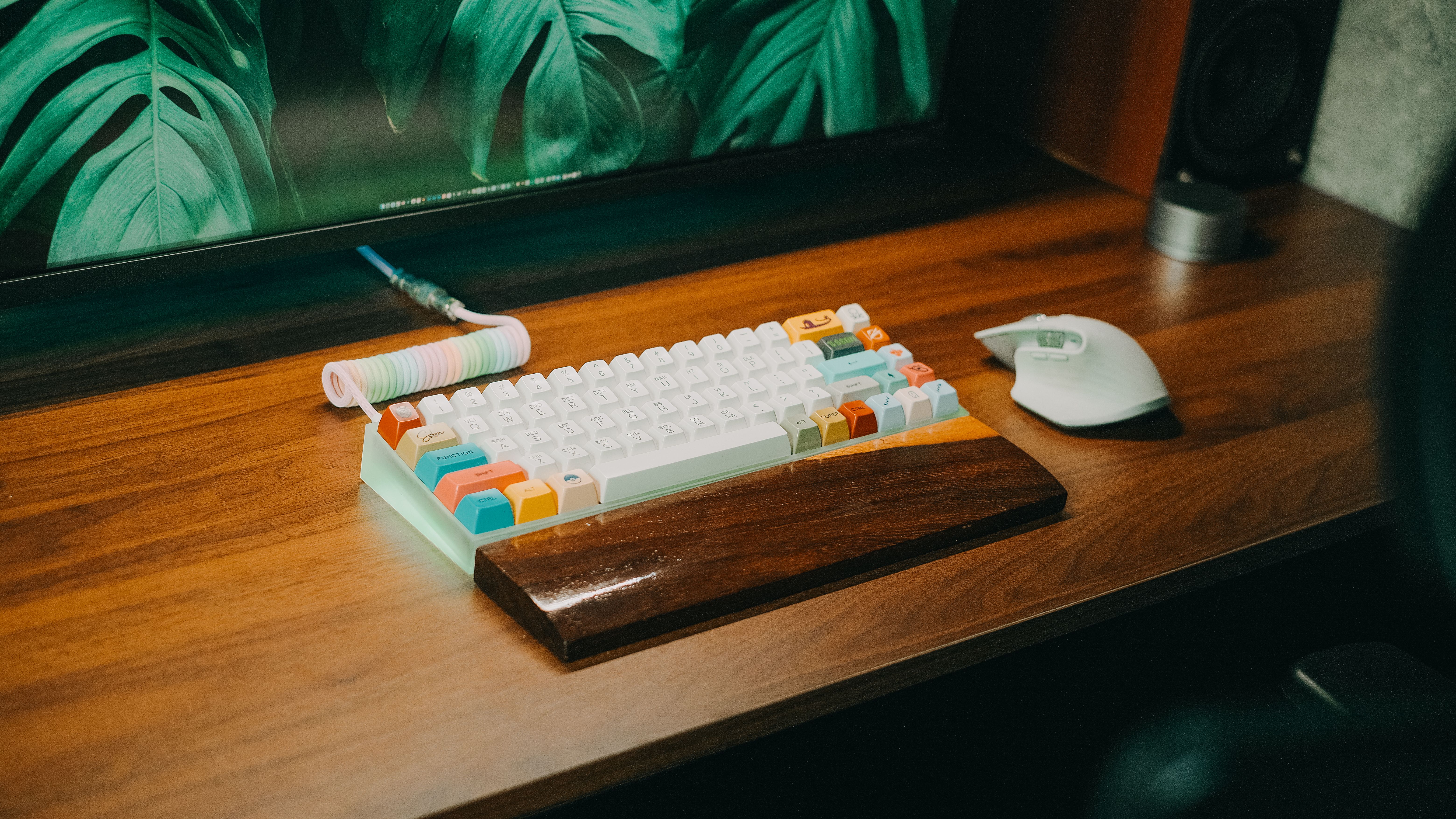
An adjustable under-desk keyboard tray gives you more control over where your keyboard and mouse sit.
Most models attach underneath the desktop and slide outward when needed. Better designs also offer height and tilt adjustments, allowing you to position the keyboard closer to elbow level.
According to OSHA’s keyboard ergonomics guidance, keyboards and pointing devices should be positioned to support relaxed shoulders and relatively straight wrists.
When shopping, choose a tray large enough to accommodate both your keyboard and mouse. Otherwise, you may end up reaching sideways whenever you need to move the cursor.
Check the available space beneath your desk before buying. Some trays require drilling, while others use clamps that are easier to remove.
If your desk is already at a comfortable typing height, you might not need one. However, for fixed-height desks that cannot be adjusted, a keyboard tray can be a practical solution.
3. A Sit-Stand Desk Converter
Remaining in one position for an entire workday can leave your shoulders, neck, and back feeling tired.
A sit-stand desk converter allows you to switch between sitting and standing without replacing your existing desk.
Unlike a complete height-adjustable desk, a converter sits on top of your current work surface. Most models use a lifting mechanism that raises your monitor, keyboard, and other equipment together.
This can be particularly useful for people who want more flexibility but aren’t ready to purchase new office furniture.
Look for a model with a stable lifting mechanism, enough surface space for your equipment, and an adjustment range that suits your height.
Some converters include a separate keyboard platform, helping you maintain a comfortable distance between your hands and the screen.
One important consideration is how the converter behaves in its lowest position. Certain models remain relatively tall even when lowered, potentially making seated typing less comfortable.
Standing all day isn’t necessarily better than sitting all day, either.
The goal is to alternate positions and move regularly, rather than replace one prolonged static posture with another.
If you already experience shoulder tension, try changing positions periodically and keeping your elbows close to your body regardless of whether you’re sitting or standing.
4. An Adjustable Desktop Document Holder

If your job involves reading printed reports, invoices, contracts, or handwritten notes, constantly looking down at papers can put additional demands on your neck.
Many people place documents flat beside their keyboard, then repeatedly turn or lower their heads to read them.
An adjustable document holder raises those papers closer to eye level.
It might seem like a minor upgrade, but it can make a noticeable difference when your work involves transferring information between printed materials and a computer.
OSHA’s document holder recommendations suggest placing documents at approximately the same height and viewing distance as your monitor.
There are several designs available, including freestanding angled holders and models that sit between your keyboard and screen.
For everyday office work, look for a holder with adjustable angles, a sturdy base, and a clip that keeps papers from sliding.
If you regularly work with thick binders or textbooks, make sure the holder supports their weight without tipping backward.
An adjustable model is preferable because you can change the angle depending on whether you’re reading, checking figures, or copying information.
This accessory is especially useful for accountants, administrative workers, researchers, and anyone who frequently switches between physical documents and digital files.
5. An Ergonomic Under-Desk Footrest
A footrest might not seem directly related to wrist or shoulder discomfort, but the position of your lower body can influence how comfortably you sit at your desk.
For example, you might raise your office chair to bring your elbows closer to keyboard height. However, doing so can leave your feet dangling above the floor.
Without proper foot support, maintaining a comfortable seated position becomes more difficult.
An ergonomic footrest gives your feet a stable surface while allowing you to keep your chair at an appropriate height.
Look for a model with adjustable height and a textured, non-slip surface.
Some footrests also tilt or rock gently, allowing you to change your ankle position while seated. These features may be useful if you dislike keeping your feet completely stationary.
According to OSHA’s workstation evaluation checklist, a footrest is appropriate when your feet cannot rest flat on the floor because of your workstation’s adjustment limitations.
Choose a size that comfortably supports both feet without forcing your knees together.
A footrest won’t directly treat neck or wrist pain, but it can help you establish a more balanced seated position, especially when your desk height cannot be changed.
If your feet already rest comfortably on the floor and your chair is properly adjusted, this accessory may be unnecessary.
Final Thoughts
A more comfortable workday doesn’t always require expensive ergonomic furniture or a completely redesigned office.
Sometimes, replacing an uncomfortable mouse, adjusting your keyboard height, or bringing documents closer to eye level is enough to improve how your workstation feels.
Start by identifying which activities cause the most discomfort. If your wrist becomes tired while using the mouse, consider a different grip. If your shoulders rise while typing, check your desk and keyboard position.
Remember that no accessory can fully compensate for working in the same position for hours. Short breaks, regular movement, and a properly arranged workstation remain important.
And if discomfort persists, worsens, or includes numbness or weakness, seek advice from a healthcare professional rather than relying on accessories alone.
The best desk setup is one that fits your body, supports your daily tasks, and makes working comfortably easier.